Choices
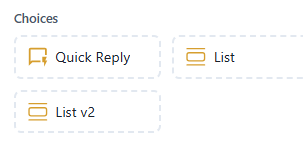
The Choices section allows you to present users with predefined options.
These options guide the conversation flow and make user responses more structured and interactive.
 Send a message with one-tap reply buttons.
Description:
Quick Replies display small buttons under a message.
When a user taps a button, the chatbot instantly receives the reply and continues the flow.
Use Case Examples:
- Asking simple questions like:
- “Do you want to know more?” → Yes / No
- “Choose your preferred language” → 🇬🇧 English / 🇫🇷 French
- Collecting quick user inputs (like categories, feedback, or preferences)
Key Features:
- Supports up to several buttons (depending on platform limits)
- Instantly triggers the next chatbot block
- Keeps conversation short and focused
 Display a list of options in a structured vertical layout.
Description:
The List element sends a menu-like message where users can scroll and choose one option.
Each option can include a title, description, and optional image or icon.
Use Case Examples:
- Product or service menus
- FAQs or support options
- Booking or selection flows
Key Features:
- Cleaner and more organized than quick replies for longer lists
- Can include subtitles and images
- Allows only one selection per message
 An enhanced version of the List element with improved layout and functionality.
Description: List v2 provides a more modern design, better compatibility with updated messaging platforms, and extended customization options.
Use Case Examples:
- Advanced product catalogs
- Service menus with categories
- Interactive list-based navigation
Key Features:
- Enhanced visual presentation
- Supports dynamic content
- Better user experience across devices.