Libromi Broadcasts & Campaigns Guide
Campaigns Overview
Using campaigns allows you to coordinate communications and measure results across multiple broadcasts, helping achieve the best outcomes.
Broadcast Panel Options
In the Libromi Broadcast panel, you have two main options:
- Campaigns – Organize broadcasts under campaigns for structured communication
- All Broadcasts – Access all broadcasts, whether part of a campaign or standalone
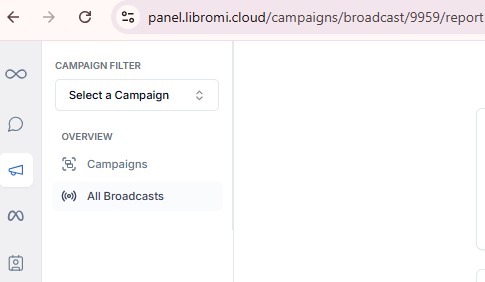
Features under these options:
- Create Campaigns & Broadcasts
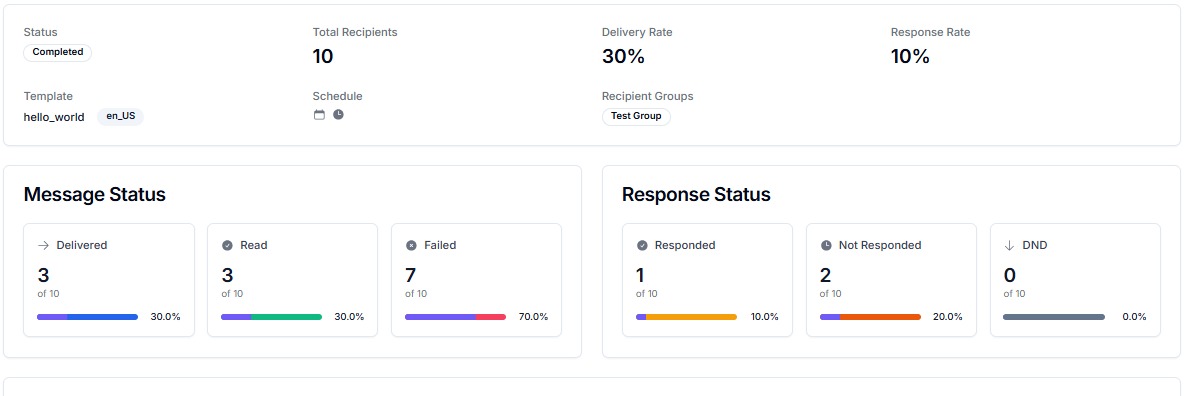
- Reports & Analytics:
- Message Status: Delivered, Read, Failed
- Response Status: Responded, Not Responded, DND
- Launch Completion Status
- Delivery Rate & Response Rate
Creating a Campaign
Step 1: Access the Broadcast Panel
- Go to the Broadcast panel.
- Select “Create Broadcast” from either “Campaigns” or “All Broadcasts” options.

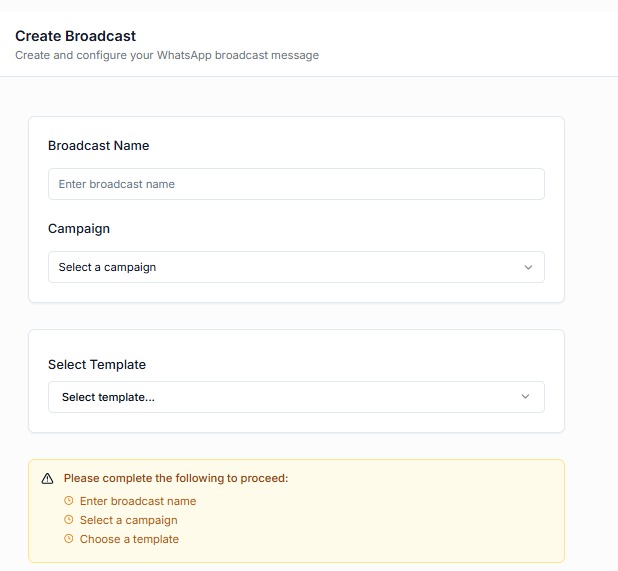
Step 2: Fill in Broadcast Details
- Broadcast Name: Enter a short, identifiable name (e.g., Flash Sale Alert).
- Campaign: Select an existing campaign or create a new one.
- Template: Choose a pre-approved template from your library. Options include:
- Text
- Media – images, videos, documents
- Interactive – buttons, quick replies, lists
Note: The template must align with WhatsApp’s content policies.
Step 3: Select Recipients
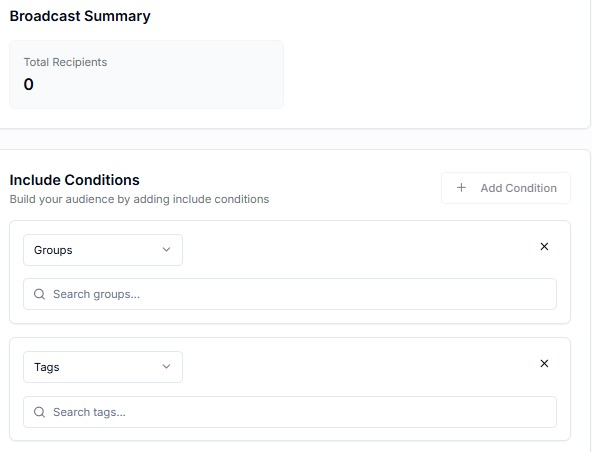
You can choose contacts using:
- Tags: e.g., contacts tagged under a specific category
- Groups: Pre-created in the Contacts section
- Import CSV: Upload a CSV list if needed
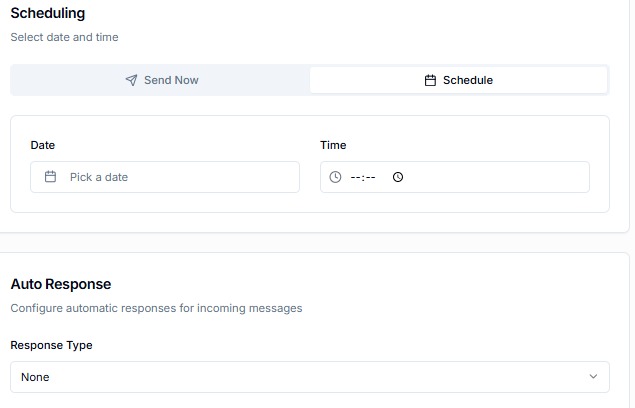
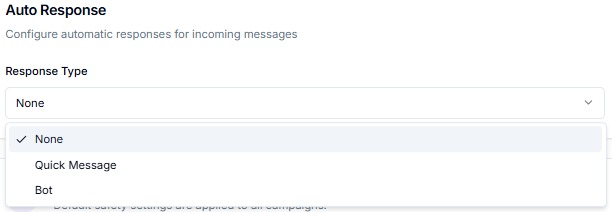
Step 4: Configure Launch
- Send Now: Launch the broadcast immediately
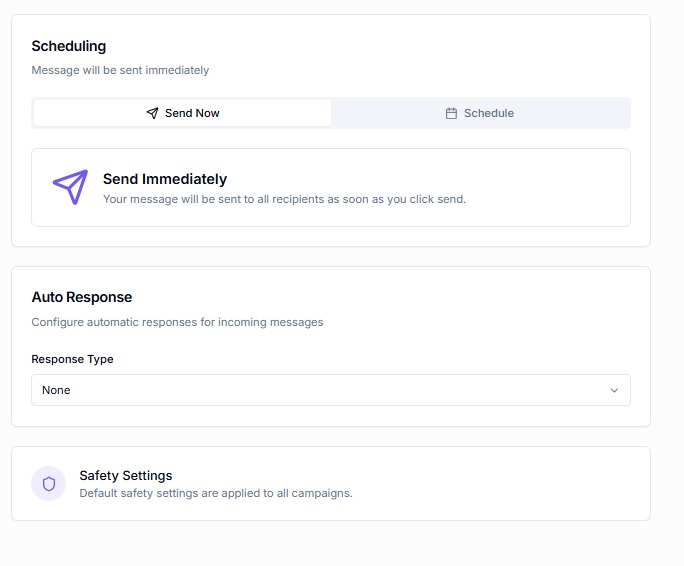
- Schedule: Set a specific date and time for the launch
- Auto Response: Optionally enable quick replies or a bot to handle incoming messages
Important: All three fields (Broadcast Name, Campaign, Template) must be filled before creating a broadcast.
Summary
Campaigns in Libromi help you:
- Organize and streamline communications
- Track performance metrics across multiple broadcasts
- Schedule and automate messaging with Auto Responses
- Analyse engagement and optimize future campaigns