The Contacts section is your centralized place to view, manage, and organize all customer or user contact data. With advanced filters, grouping, import/export tools, and bulk actions, managing thousands of contacts becomes quick and efficient.
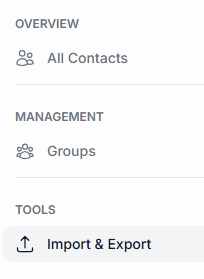
You can view the following three options under the left panel in the Contacts section:
1. All Contacts
This is the default view when you select the Contacts section.
- View and manage all saved contacts in one place.
- Filter and search contacts by name, phone, etc.
- Use Bulk options to add or remove multiple contacts into different groups.
- Create and edit existing contacts.
2. Groups
Organize contacts into segments for better targeting or management.
- Create or delete groups.
- Merge one or multiple groups.
- Search for a particular group from a list of existing groups.
3. Import & Export
Upload contacts via CSV or export them for backup, migration, or analysis.
- Easily import contacts using a
.csvfile. - Export contacts for various purposes such as data analysis or backups.
Main Contact View (Centre Panel)
This area gives you access to the tools necessary for contact search, filtering, and management.

Search and Filters
Use this field to quickly find contacts by:
- Name
- Phone number
- Email (if supported)
Column Management
Customize which columns you see in the contact list.
You can add or remove data fields like:
- Name
- Phone Number
- Tags
- Created Date
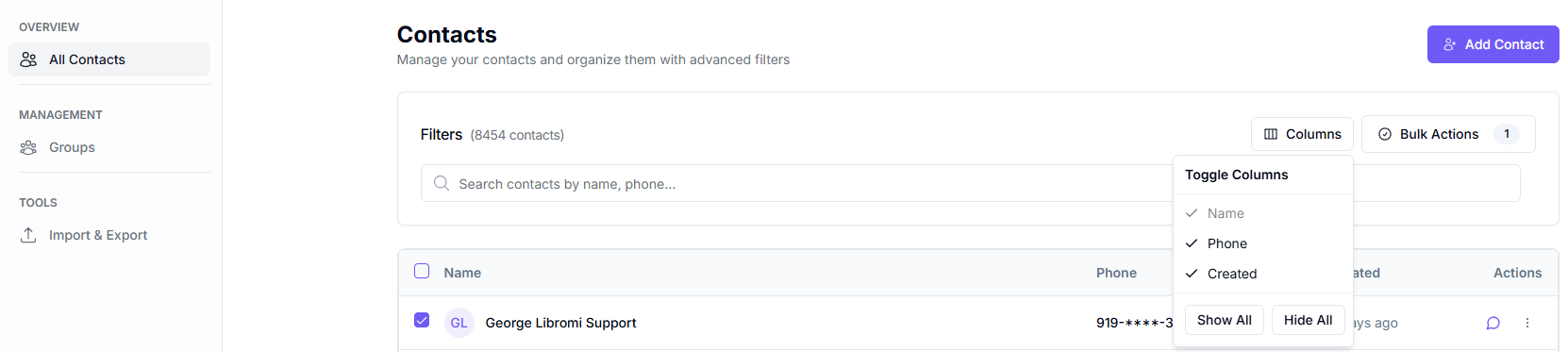
Purpose: Tailor the view to your workflow or reporting needs.
Bulk Actions
Apply actions to multiple contacts at once.
Available bulk actions may include:
- Add to group
- Delete contacts
- Export selection
- Apply tag or label
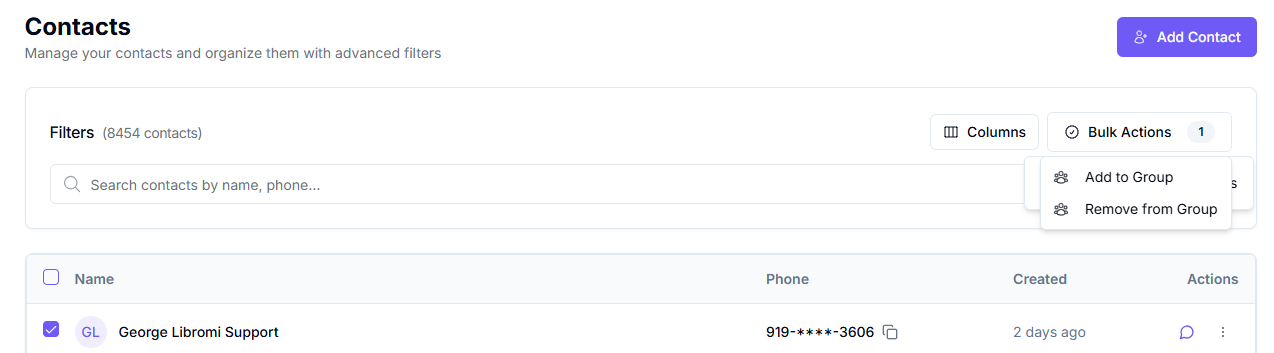
How to Use:
- Select one or more contacts from the list.
- Click Bulk Actions.
- Choose the desired action from the dropdown.
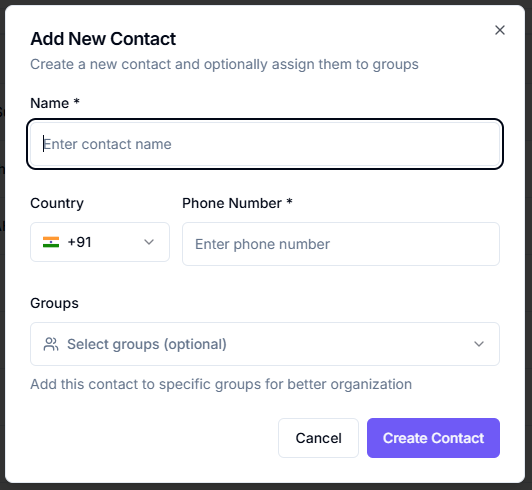
Add Contact
Opens a form to manually add a new contact.
Fields may include:
- Name
- Phone Number
- Group assignment
- Tags