Auto Reply
When enabled, Auto Reply deactivates the chatbot and sends a predefined message if no response is given within the set Period. Create a Quick Message in Settings and assign it for auto-reply.
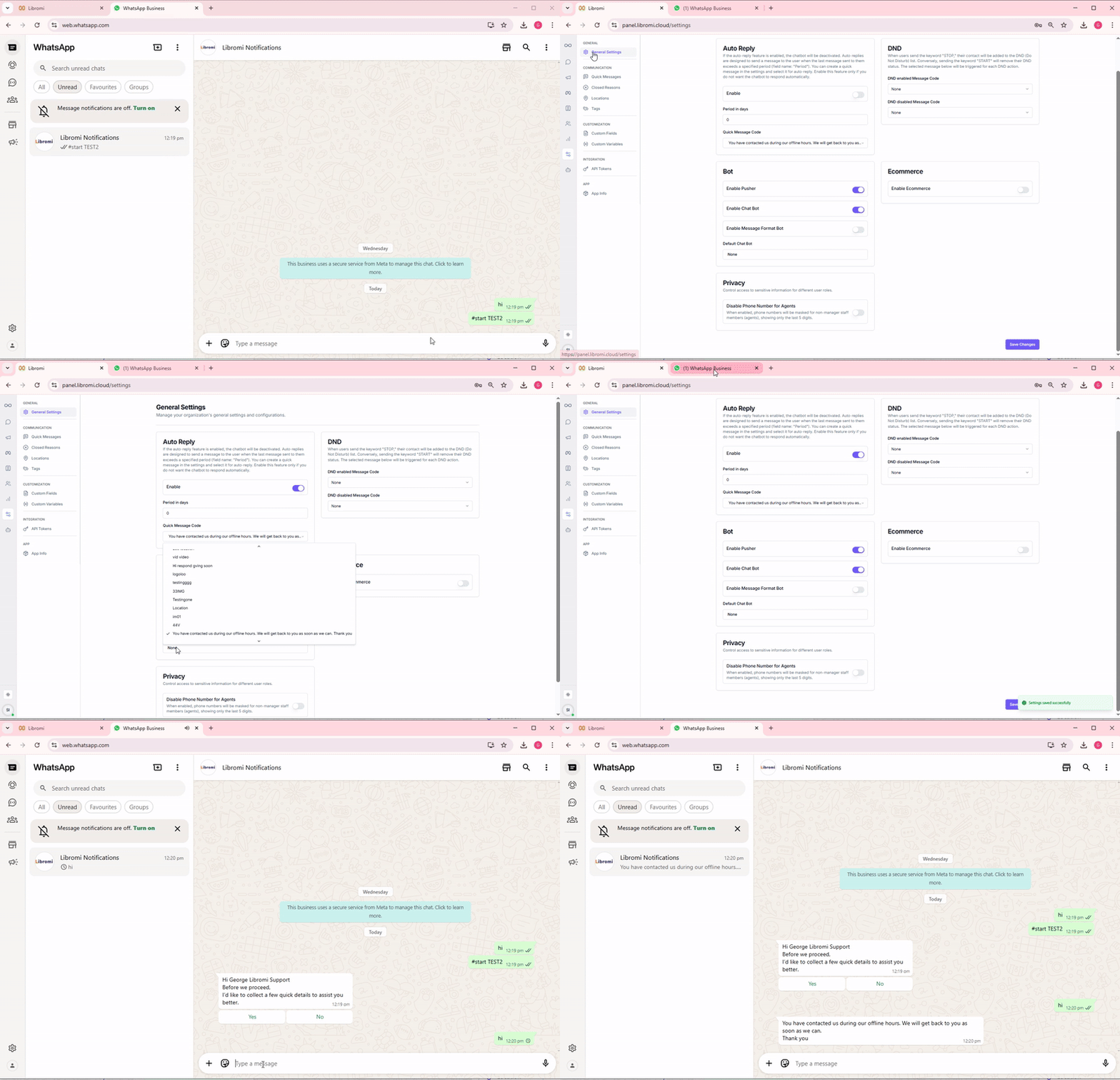
Steps to Configure
- Create a Quick Message
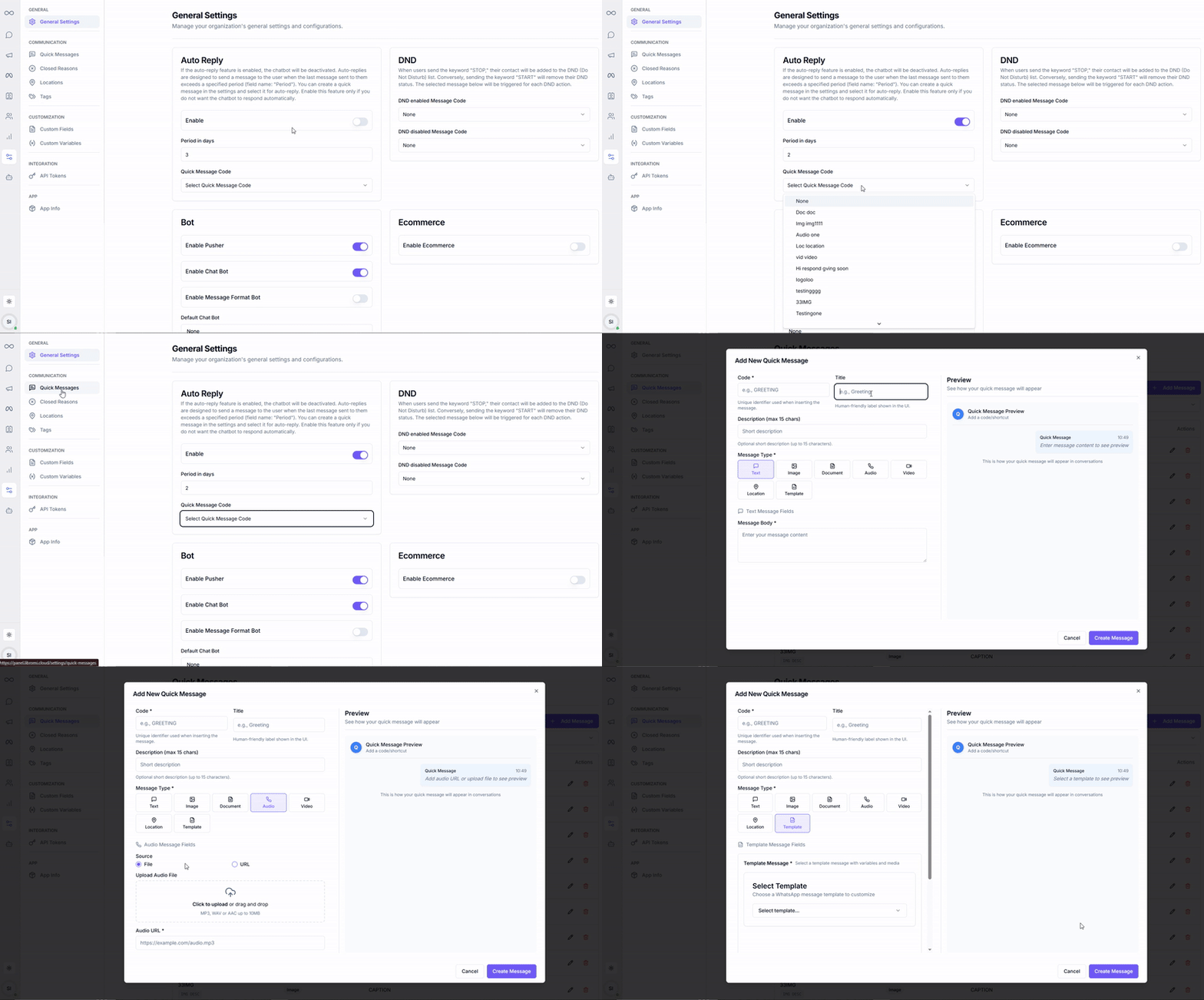
- Go to Settings → Communication → Quick Messages.
- Click Add Message to create a new message.
- Assign a Code/Name for easy identification.
- Define the message details:
-
Define the message details:
- Basic Info – Add a Title and Description.
- Format Type – Select Text, Image, Document, Audio, Video, Location, or Template.
- Content – Enter the actual message body.
-
Preview the message and click Create Message.
- Enable Auto Reply
- Navigate to Settings → General.
- Enable the Auto Reply option.
- Select the duration (number of days) for which Auto Reply should be active.
- Choose the Quick Message you created from the dropdown.
Once enabled, the system will automatically respond to customers with your predefined Quick Message during the selected period.
Note: Enable this feature only if you do not want the chatbot to auto-respond. It is intended for unattended periods.