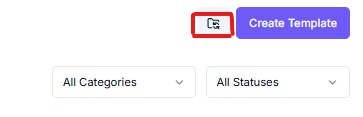
Templates (or Message Templates) are pre-approved WhatsApp messages businesses use for customer communication. They ensure compliance with WhatsApp policies and allow you to send notifications, updates, promotions, and support messages at scale.
Navigation to Templates Section
- Click on the option ‘Meta’ from the left panel.
- Click on ‘Templates’ under Configuration.
On the Message Templates page, you can:
- View the list of newly created templates with their status (Approved/Pending).
- See the type of template (Utility, Authentication, Marketing).
- Preview and edit templates.
- Use the Search bar to quickly filter templates.
- Filter templates by Category or Status.
Types of Templates
- Utility Templates – Transactional updates like order confirmations, payment reminders, shipping updates, etc.
- Authentication Templates – OTPs or verification codes for secure login/transactions.
- Marketing Templates – Promotional offers, product recommendations, event invites, or re-engagement campaigns.
How to Create a Template in Libromi
- Login to Libromi Dashboard.
- Navigate to Meta → Templates → Create Template.

- Select the Category (Utility, Authentication, or Marketing) → ensure you choose the correct one.
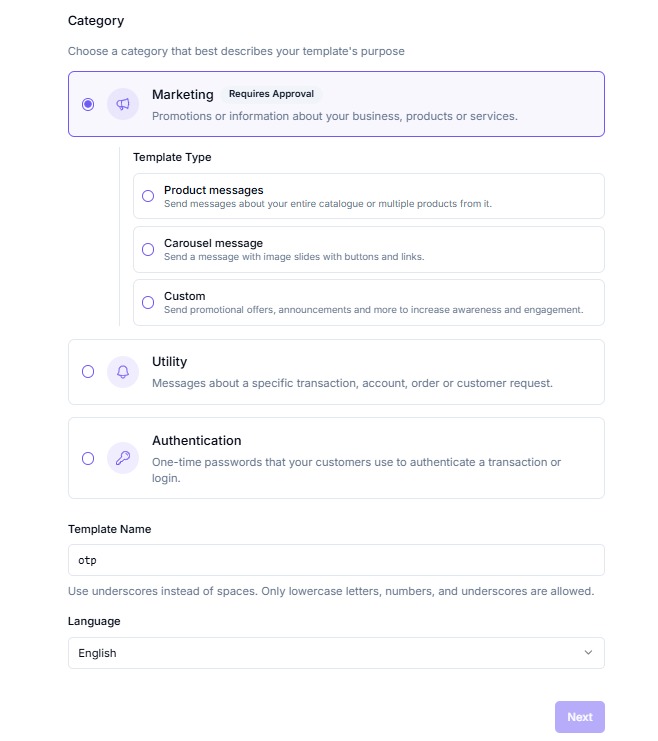
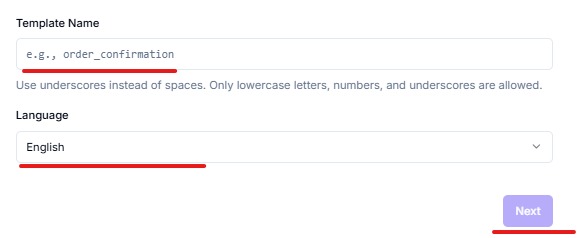
- Enter a Template Name (clear and descriptive) and select the Language (multi-language supported).
- Write your Message Content:
- The contents vary based on the chosen category.
- Example: In a Marketing template, you can add a Header (text, image, video, or document), a Body, and a Footer.
- Use placeholders like
{{1}}for personalization. - You can preview the template in real time to see how it will appear in its final form.
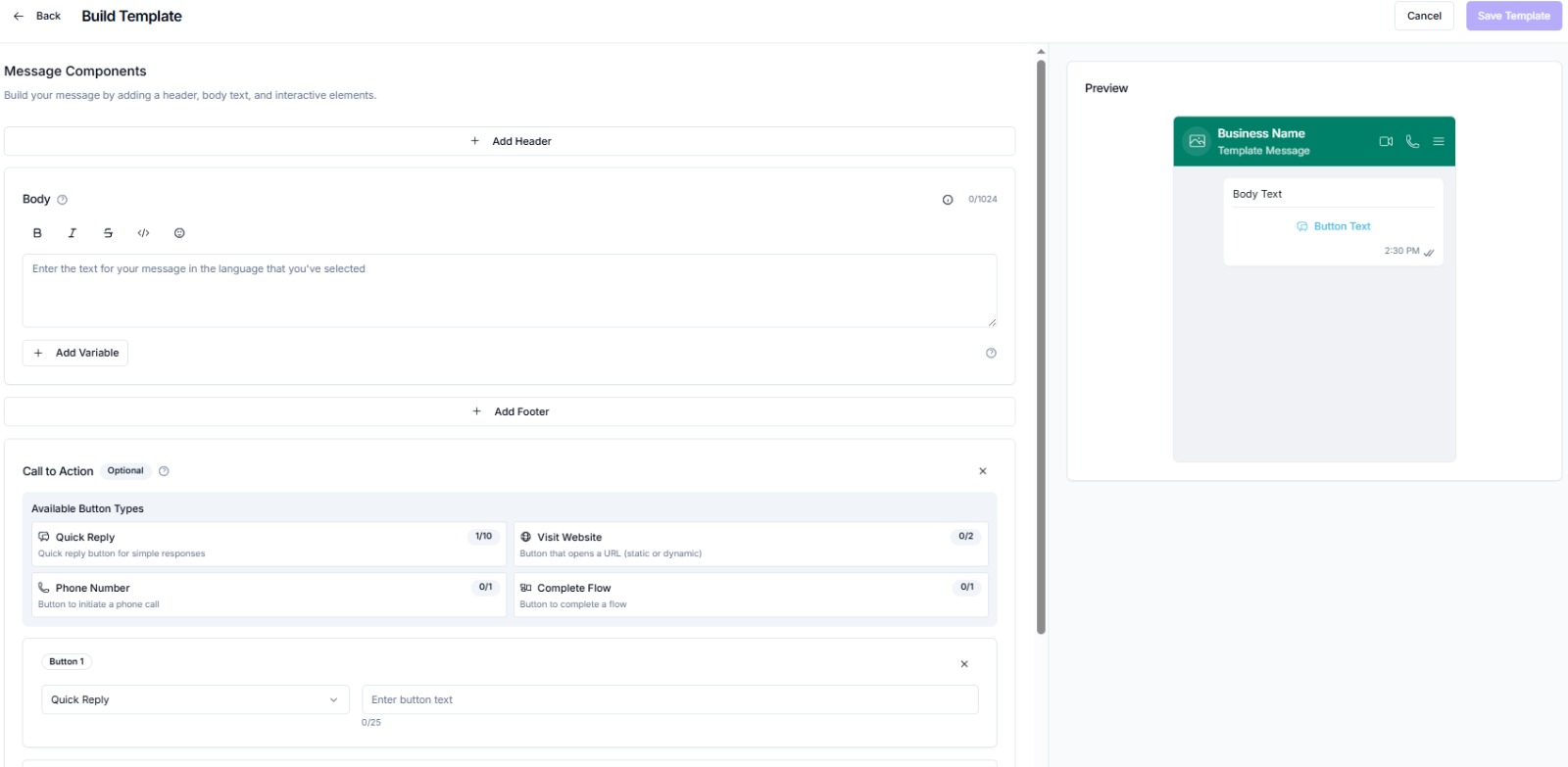
- Add Buttons:
- Quick Reply
- Call-to-Action
- URL Redirect
- Once the template is ready, click Submit for Meta (WhatsApp) Approval.
- After approval, use Sync Template to make the approved template available in the Broadcast section of Libromi.