You can add new users, assign permissions, and create teams to keep your organization structured.
Users
The Users section allows you to manage individual user accounts and their access to your organization.
View All Users
- Navigate to Users → All Users.
- Here, you will see a list of all registered users in your organization along with their roles and status.
Add a New User
-
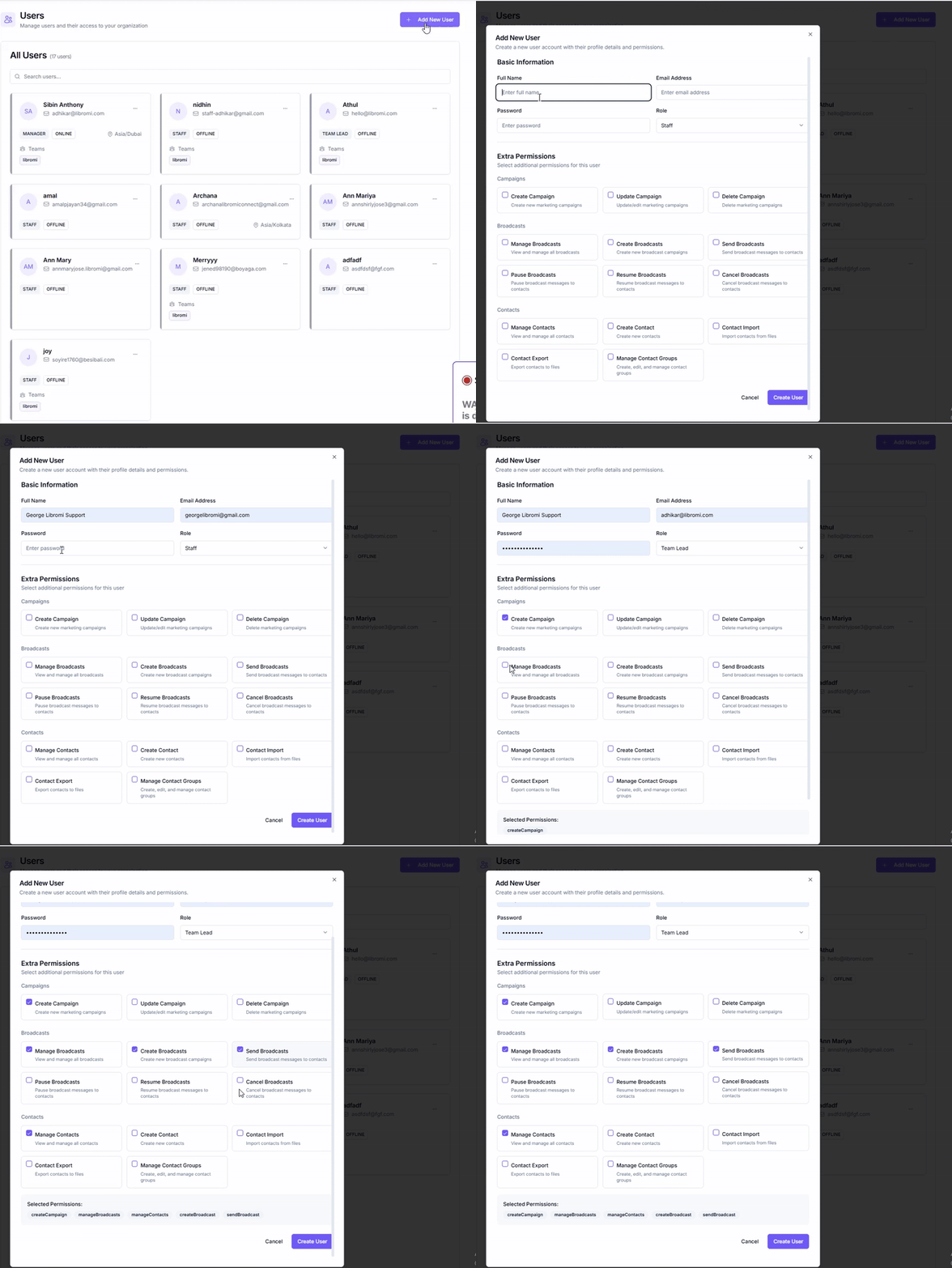
Click the Add New User button.
-
Fill in the Basic Information:
- Full Name: Enter the user’s full name.
- Email Address: Provide their email for login and notifications.
- Password: Set a temporary password (user can change later).
- Role: Assign a role (e.g., Staff).
-
Set Extra Permissions (optional):
- Campaigns: Create, update, or delete campaigns.
- Broadcasts: Manage, create, send, pause, resume, or cancel broadcasts.
- Contacts: Manage contacts, create/import/export contacts, and organize groups.
-
Click Create User to finalize.
Teams
The Teams section helps you organize users into groups, making it easier to manage permissions and collaboration.
View All Teams
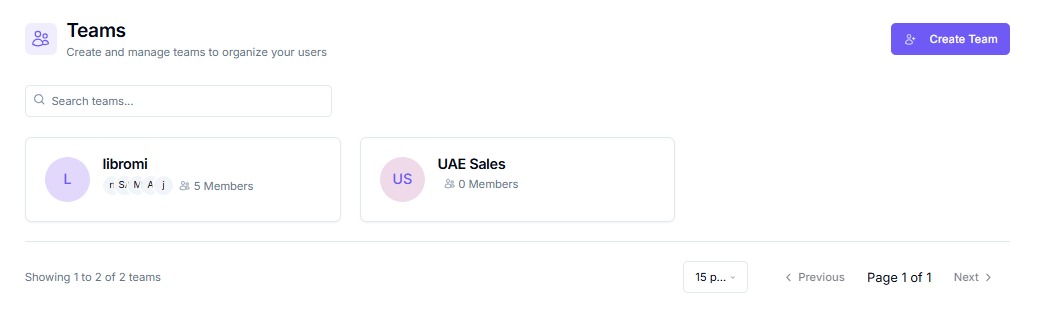
- Navigate to Teams from the sidebar.
- Use the search box to quickly find a team.
Create a New Team
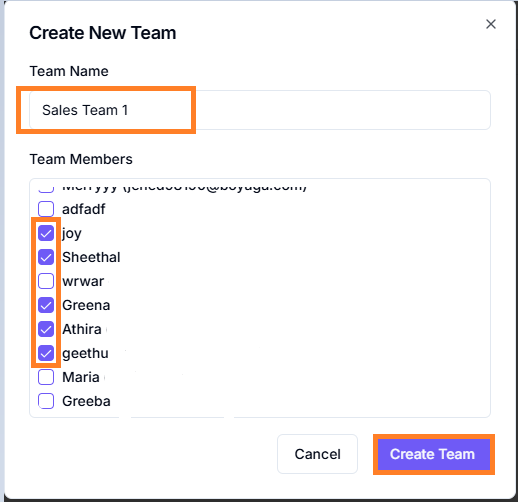
- Click the Create Team button.
- Enter the Team Name.
- Add Team Members from your existing user list.
- Click Save to create the team.